
How to Install DLSS 5 in ANY Unsupported Games Using DLSS5-Swapper
NVIDIA’s DLSS 5 technology is officially limited to supported games and hardware, but the PC modding community has found ways to bring parts of the experience to a much wider range of games and GeForce RTX GPUs.
One of the easiest ways to experiment with these community-made implementations is DLSS5-Swapper, a free and open-source Windows tool created by an independent developer. It automates much of the work that would otherwise require manually installing and configuring tools such as ReShade, RenoDX, and other community components.
The biggest advantage is convenience: DLSS5-Swapper can automatically detect installed games, back up their original files, install the required components, and restore the originals when you’re finished.
However, there are some important caveats. DLSS5-Swapper is not an official NVIDIA application, and some of the components it uses are community-made or based on leaked/pre-release DLLs. The developer also warns that modified games can crash, fail to launch or, in some cases, result in an account ban.
With that in mind, here’s how to use DLSS5-Swapper safely.
What Does DLSS5-Swapper Actually Do?
Before installing anything, it’s important to understand that DLSS5-Swapper offers two different approaches.
Native DLSS
This option is designed for games that already support DLSS.
If a game already has NVIDIA DLSS integrated into its rendering pipeline, DLSS5-Swapper can replace or update the relevant components with newer DLSS 5 components.
This is the simpler and generally preferable option when it is available.
DLSS5-Feeder
DLSS5-Feeder takes a more experimental approach.
It attempts to inject DLSS 5 functionality into games that don’t natively support DLSS, using ReShade and other community components.
The developer explicitly describes this functionality as experimental, so expect more compatibility problems compared with the native route.
In short:
- Game already supports DLSS? Use Native DLSS.
- Game doesn’t support DLSS? You can experiment with DLSS5-Feeder, but expect more potential problems.
Important Things to Know Before You Start
There are several risks you should understand before modifying any game files.
Windows may block the application
DLSS5-Swapper’s executable files are not digitally signed. As a result, Windows SmartScreen may display a “Windows has protected your PC” warning when you first launch the application.
This doesn’t automatically mean the program is malicious, but it does mean Windows cannot verify the publisher’s identity through a digital signature.
Your game could crash or stop launching
The project’s own release notes warn that installing the components may cause a game to crash or prevent it from launching.
Fortunately, DLSS5-Swapper automatically creates backups before modifying supported game files, allowing you to restore the originals.
Online games carry additional risk
The tool does not intentionally disable or bypass anti-cheat systems. However, modifying files belonging to an online game can still potentially trigger anti-cheat software.
The developer therefore warns that installation could potentially result in an account ban.
For that reason, it’s much safer to experiment with DLSS5-Swapper on single-player games than on games where your account or multiplayer access is important.
This isn’t an official NVIDIA implementation
DLSS5-Swapper isn’t an official NVIDIA utility or an officially supported way of adding DLSS 5 to games.
Under the hood, it relies on community-developed solutions and leaked/pre-release components such as RenoDX and OptiScaler. The application essentially packages and automates a number of steps that enthusiasts could otherwise perform manually.
Performance can vary dramatically
Don’t assume that installing DLSS 5 will automatically increase your frame rate.
Community testing has reported cases where unofficial implementations actually reduced performance significantly. For example, one test involving Control reportedly saw performance fall from around 71 FPS to 35 FPS on an RTX 5070 Ti.
Your results can vary considerably depending on the game, GPU, driver, graphics API and configuration.
DLSS5-Swapper Requirements
Before getting started, make sure your system meets the basic requirements.
| Requirement | Details |
|---|---|
| Operating system | Windows 10 or Windows 11, 64-bit |
| GPU | GeForce RTX 20-series or newer |
| NVIDIA driver | Latest NVIDIA Game Ready driver recommended |
| Game | A compatible game with native DLSS support or DLSS5-Feeder compatibility |
| Emulators | The tool supports projects such as DuckStation, PCSX2, Dolphin, PPSSPP, Xenia, Cemu and RPCS3 |
| Storage | A few hundred MB for downloaded components |
| OptiScaler feature | Requires RTX 50-series GPU and NVIDIA driver 616.56 or newer |
One interesting aspect of DLSS5-Swapper is that its community patches can extend compatibility to RTX 20-, 30-, and 40-series GPUs, unlike NVIDIA’s official DLSS 5 hardware requirements.
However, the OptiScaler functionality remains restricted to RTX 50-series GPUs and NVIDIA driver 616.56 or later.
How to Install DLSS 5 With DLSS5-Swapper
Step 1: Download DLSS5-Swapper
Start by downloading the application from the project’s official GitHub Releases page.
You’ll typically find two versions:
- Setup — a conventional Windows installer.
- Portable — runs directly without requiring a traditional installation.
If you prefer keeping things simple and portable, the portable version is a convenient choice.
Check the SHA-256 hash
Because the executable isn’t digitally signed, it’s a good idea to verify the downloaded file’s SHA-256 checksum against the checksum published by the developer on the release page.
This helps confirm that the file you downloaded hasn’t been modified or corrupted.
Step 2: Get Past the Windows SmartScreen Warning
The first time you launch DLSS5-Swapper, Windows may display:
Windows has protected your PC
This happens because the executable isn’t digitally signed.
If you’ve independently verified that you downloaded the application from the project’s official release page and you’ve decided to proceed:
- Click Learn more.
- Click Run anyway.
Only bypass the warning if you’re comfortable accepting the risks associated with running an unsigned third-party application.
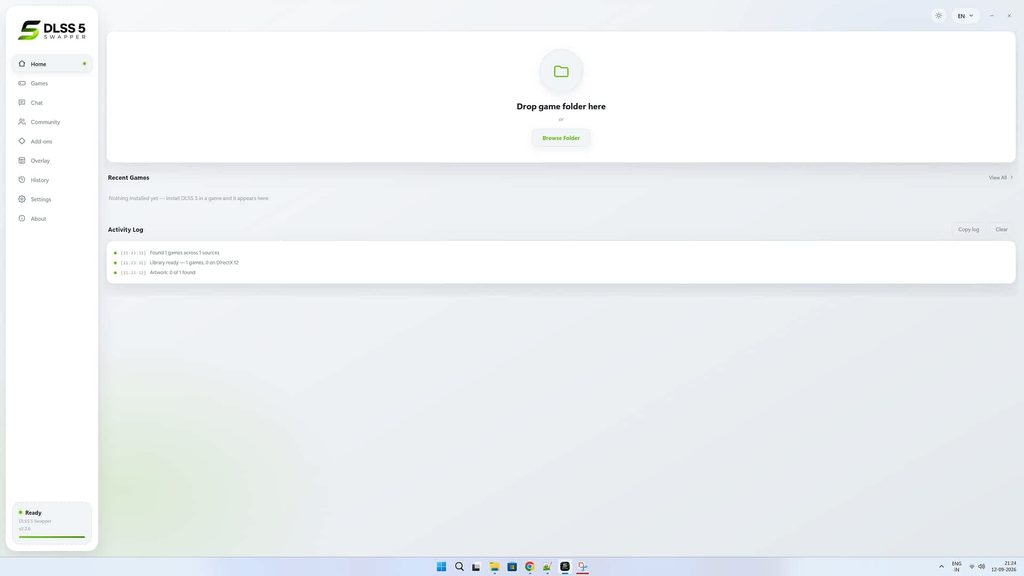
Step 3: Let DLSS5-Swapper Find Your Games
Once the application starts, DLSS5-Swapper automatically looks for games installed through supported platforms, including:
- Steam
- Epic Games Store
- GOG
- Modern Xbox/Game Pass installations
The application doesn’t perform an unrestricted scan of every drive by default. This helps reduce unnecessary disk activity and avoids scanning areas that aren’t relevant to your games.
If your game isn’t detected, you have two options:
Add the game manually
Use Add Game and select the folder containing the game.
Enable full disk scanning
You can also enable full disk scanning from the application’s settings if you want DLSS5-Swapper to search more broadly.
Once your game appears in the library, select it and check the executable that DLSS5-Swapper has identified.
This is particularly important for games that contain multiple executables, such as a launcher and a separate main game executable.
Step 4: Choose Between Native DLSS and DLSS5-Feeder
After selecting a game, you’ll see the available installation options.
This is the most important choice you’ll make.
If the game already supports DLSS
Select Native DLSS.
This is the recommended option for games that already have DLSS integrated.
DLSS5-Swapper will replace/update the relevant DLSS components with the DLSS 5 version supported by the tool.
If the game doesn’t support DLSS
Select DLSS5-Feeder.
This uses ReShade and other community components to attempt to provide DLSS 5 functionality to a game that doesn’t natively support DLSS.
Because this is an experimental approach, compatibility and performance can vary substantially between games.
Check the graphics API
DLSS5-Swapper can work with several graphics APIs, including:
- DirectX 9
- DirectX 10
- DirectX 11
- DirectX 12
- Vulkan
- OpenGL
The application attempts to detect the correct API automatically.
If the detection is incorrect, you can manually select the API. Make sure the option you choose actually matches the API used by the game.
Choosing the wrong API can prevent the modification from working correctly.
Step 5: Install DLSS 5
Once you’ve selected the appropriate mode and confirmed the graphics API, click:
DLSS 5 Install
DLSS5-Swapper will download and install the required components.
One of the tool’s most useful features is that it automatically backs up the original game files before making changes.
This backup is important. If something goes wrong, you can use it to return the game to its original state.
Wait for the installation process to finish before launching the game.
Step 6: Launch the Game and Check the Installation
What you need to check next depends on which installation method you selected.
Native DLSS installation
Launch the game and open its graphics or video settings.
Look for the game’s existing DLSS or Neural Rendering option.
If everything worked correctly, the updated DLSS components should now be active.
DLSS5-Feeder installation
The Feeder path works differently because the game doesn’t have native DLSS support.
Launch the game and open the ReShade overlay, usually using the Home or Delete key depending on your configuration.
Go to the Add-ons section and check that the required effects have loaded.
If the Feeder installation reports that no effects are available, that’s a sign that something isn’t working correctly.
Don’t confuse this with the native DLSS path: seeing no ReShade effects isn’t necessarily a problem when you’re using Native DLSS.
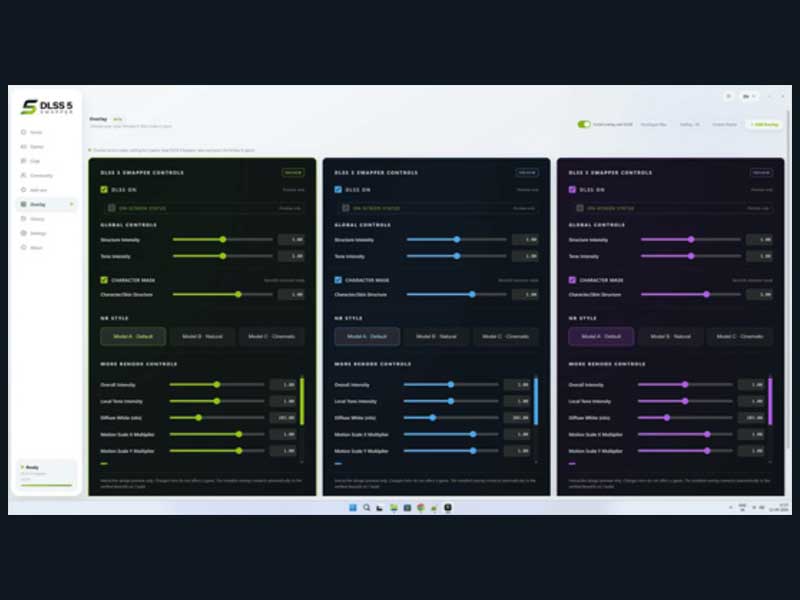
Step 7: Adjust DLSS Neural Rendering
Recent versions of DLSS5-Swapper also provide an in-game overlay for adjusting the Neural Rendering effect.
Press F8 while playing to open the tool’s dedicated overlay.
The panel provides access to DLSS Neural Rendering controls associated with the currently loaded RenoDX build.
This lets you experiment with the effect’s intensity without constantly leaving the game and changing configuration files.
There is one important catch: while the F8 panel is open, the game won’t receive normal mouse or keyboard input.
That’s useful when you’re trying to inspect the visual effect without accidentally moving the camera, but remember to close the panel before continuing to play.
What to Do If the Game Crashes
Unofficial graphics modifications aren’t guaranteed to work with every game.
If the game crashes immediately after installation or refuses to launch, the first thing to try is restoring the original files.
Open the game in DLSS5-Swapper and select:
Restore originals
The tool will restore the backup it created before installation.
Some games have known compatibility problems. Titles such as Midnight Suns, Resident Evil 5 and GTA IV have had crash reports associated with the project, although the developer does not claim that every issue has been universally resolved.
If you’re reporting a problem to the project, provide the relevant ReShade, Feeder and installation logs where possible. A simple “it doesn’t work” report isn’t particularly useful for diagnosing compatibility problems.
How to Uninstall DLSS 5 and Restore the Original Files
If you decide DLSS5-Swapper isn’t working properly, you don’t need to manually replace individual DLL files.
- Open DLSS5-Swapper.
- Select the modified game.
- Click Restore originals.
- Wait for the restoration process to complete.
- Launch the game normally.
The backup system is designed to let you recover the original files even if you’ve installed the DLSS components multiple times.
Should You Use DLSS5-Swapper?
DLSS5-Swapper makes experimenting with community DLSS 5 implementations considerably easier than performing the process manually.
It’s particularly interesting for single-player games and enthusiasts who want to experiment with DLSS 5 on hardware that isn’t officially supported.
However, it shouldn’t be treated as a risk-free upgrade.
The most important things to remember are:
- It is not an official NVIDIA tool.
- The executable is unsigned.
- DLSS5-Feeder is experimental.
- Modified game files can cause crashes or prevent games from launching.
- Online games may present an anti-cheat/account-ban risk.
- Performance can sometimes be worse rather than better.
- The community implementations aren’t equivalent to having official DLSS 5 support from the game developer and NVIDIA.
For that reason, we’d recommend starting with a single-player game that you can easily restore rather than experimenting with a competitive online title tied to an important account.
If the results aren’t satisfactory, simply use Restore originals and return the game to its previous configuration.