
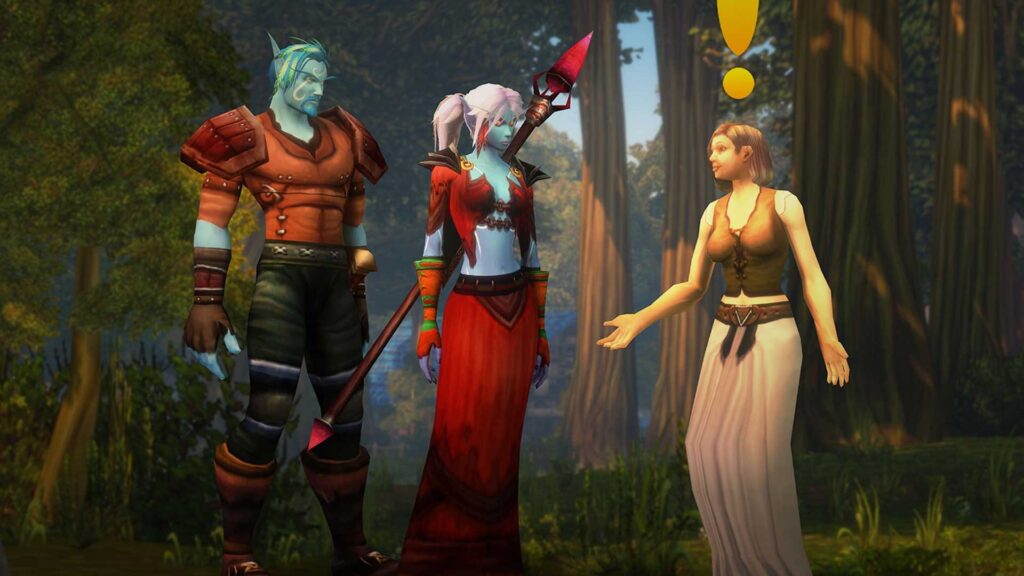
To start with World of Warcraft: Forever you have to first choose from our regional rule-sets: Normal, PvP, RP, RP-PvP. Then select the Experience Preset between Enhanced (strafe binds and map trackers) or Classic (purist UI). Then select your characters HD or SD model and register the characters name. Next you will need a native gamepad support that allows 84 mapped action slots.
Key Setup Choices at a Glance

| Feature / Setting | Available Options | Gameplay Impact |
| Ruleset | Normal, PvP, RP, RP-PvP | Sets open-world PvP rules and faction restrictions (PvP locks you to one faction). |
| Experience Preset | Enhanced vs. Classic | Configures default keybinds (A/D strafe vs. turn), map quest markers, and transmog. |
| Character Models | High Definition (HD) vs. Standard (SD) | Visual toggle set per character; does not affect hitboxes, cast times, or combat speed. |
| Naming Format | First Name + Secondary Name | Must be unique across the region as a combined pair; second name can be hidden overhead. |
| Input Mode | Mouse & Keyboard or Native Gamepad | Native XInput support with trigger-based action bar layers (ConsolePort no longer needed). |
Step 1: Pick the Right Ruleset (No More Realm Lists)
Here are tips on how to pick best shared regional rulesets instead of checking dozens of individual realms.
Normal: Best for questing, leveling up and dungeon grinding. No risk of getting attack or robbed. You can roll both Horde and Alliance characters on the same account.
PvP: If you are in contested zone then be ready for hostile combat. Also the rule-set under PvP enforces account-wide faction lock. That means once you create a Horde or Alliance character, all future characters on that ruleset must share that faction.
RP & RP-PvP: Naming rules and roleplay are very strict here.
You cannot transfer character between different rule-sets. So make sure to pick the right one as if you change your mind after spending many hours it will be wastage.
Step 2: Choose Your Experience Preset and Model Fidelity
At the very beginning of the game you will have to pick overall Experience Preset. You can fine-tune this later.
Enhanced Preset: It is recommended to pick Enhanced presets. Sets A/D keys to strafe instead of turn, enables modern centralized action bars, turns on map quest objective blobs, and enables transmog.
Classic Preset: If you want to try old school 2004 keyboard settings then go with this. You will get split action bar, hidden quest markers and tansmog display is turned off.
HD vs SD Models: This option will be available at the time of selecting the character. HD offers updated high-polygon models with restored animations. SD gives you low-poly 1.12 classic models. This is just an visual choice and can be modified anytime from in-game Barbershop.
Turn off Compute Effects and Secondary Lightning if you are facing FPS drop. Similarly shadow, lightning passes consume more GPU that effect the fps.
Step 3: Register Your Two-Part Character Name
In this you will have to enter both First Name and Second Name. It is important that the name must be unique. If you see the preferred first name is already taken, you can still take it by providing a unique secondary name. As millions of players will share the same regional rule-set, dual-name system is applied permanently.
You can also clear up overhead display if you see the second name is not clearly visible. For this just go to Options and look for Nameplates. Here remove the tick from My Secondary Name and done. Only first name will be visible on the name plate.
Step 4: Configure Native Gamepad / Controller Combat
The last step is to plugin ni a XInput controller. WOW Forever supports Xbox and PlayStation HUD button prompts.
- Plug-in the controller and go to Game Menu > Options > Gameplay > Gamepad.
- Hold LT, RT or LT + RT to swap between 4 core actions slots per button in the gamepad HUD.
- Then hold LB + RB and tap left or right with dpad to cycle through each action bar set (28 slots). Here you can configure 84 assignable spell slots.
- Next Hold LB + RB + B to open backpack or LB + RB + Up to access log.
- Enable Action Targeting so that while attack enemies are locked automatically.
So this was all the base settings you will need to start with WOW: Forever. Remember that ruleset’s apply strict one-faction lock per account. You cannot play both Hord or Alliance.